



Finde heraus, welches Angebot im Checkout besser konvertiert, und optimiere so deine Verkaufsstrategie.

Produkt
Qikify Checkout Plus
Ziele
Herausfinden, welche Angebote im Checkout funktionieren und welche nicht
Datenbasiert bewerten
Wann und für welche Marken eignet sich dieser Anwendungsfall?
Für Onlineshops, die im Checkout-Prozess verschiedene Produktangebote testen möchten
Verwendete Funktionen
- • Product Offers — zeige deiner Kundschaft Produktangebote direkt auf der Checkout-Seite.
- • A/B-Test — teile den Traffic auf zwei konfigurierbare Angebotssets auf, Angebot A und Angebot B, und finde heraus, welches besser konvertiert.
- • Checkout-App-Block — füge den Block „Product Offers“ im Checkout-Editor hinzu und platziere ihn per Drag-and-drop.
Anleitung
Schritt 1: Im App-Dashboard anmelden
Melde dich im Adminbereich deines Shops an und öffne die App „Qikify Checkout Plus“. Falls du unsere App noch nicht installiert hast, kannst du das kostenlos hier tun.
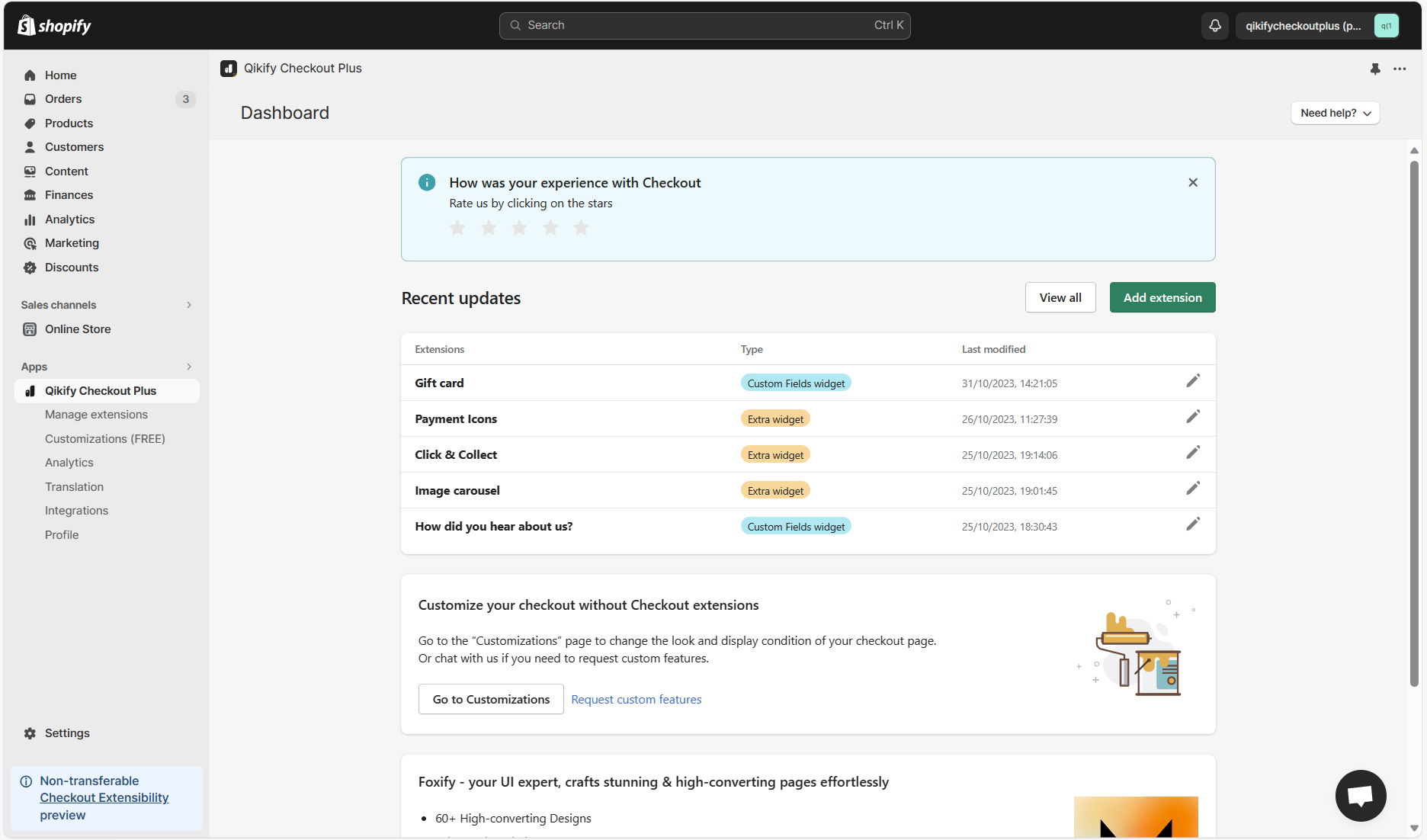
Schritt 2: Erweiterung „Product Offers“ hinzufügen
Klicke im App-Dashboard auf die Schaltfläche „Add extension“ und wähle dann die Erweiterung „Product Offers“ aus

Schritt 3: Angebotene Produkte hinzufügen und die Einstellung „A/B testing“ aktivieren
- Aktiviere im Erweiterungs-Editor die Einstellung „A/B testing“ > Der Editor zeigt dir dann die Angebotseinstellungen für Angebot A & B zur Konfiguration an. (Siehe Beispielbild)
- Wenn du alle Angebote ausgewählt hast, klicke zum Abschluss auf „Save“.

Schritt 4: Erweiterung zum Checkout-Editor hinzufügen
- Öffne in Shopify Einstellungen > Checkout. Klicke dann auf „Anpassen“, um den Checkout-Editor zu öffnen
- Klicke im linken Bereich auf „App-Block hinzufügen“ und wähle „Product offers“ > Ziehe den Block im Editor per Drag-and-drop an die gewünschte Position

Demovideo


