


Upsell product item by suggesting higher-level of variant to your customers with discount
Product
Qikify Upsell Bundle
Goals
When and which brand should apply this case?
Brands are seeking to motivate customers to upgrade their product selection to higher-level products or items.
Features used
- • Upsurge (Upgrade) Offer — create an offer that prompts customers to upgrade their product selection to a higher-level variant.
- • Offer Styling — customize the look of your volume discount offer pop-up or embed to match your store's design.
- • Product Page App Embed — add the "qikify Upsurge" block to your product page via the theme editor so the offer displays directly on product pages.
Instructions
Step 1: Log in app dashboard
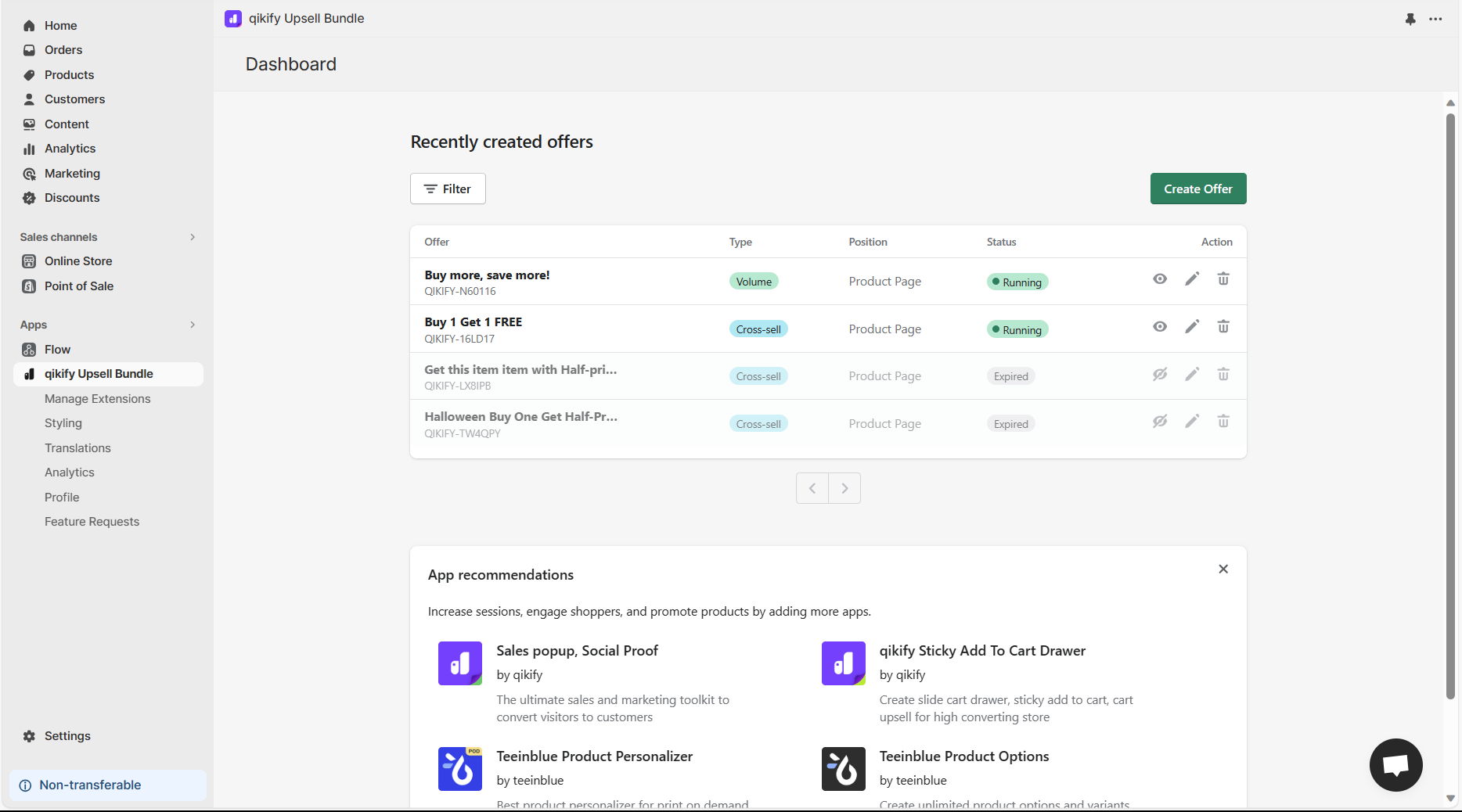
Log in to your store admin and open "Qikify Upsell Bundle" app. If you haven't installed our app, you can free to do it from here.
Step 2: Create offer "Upsurge"
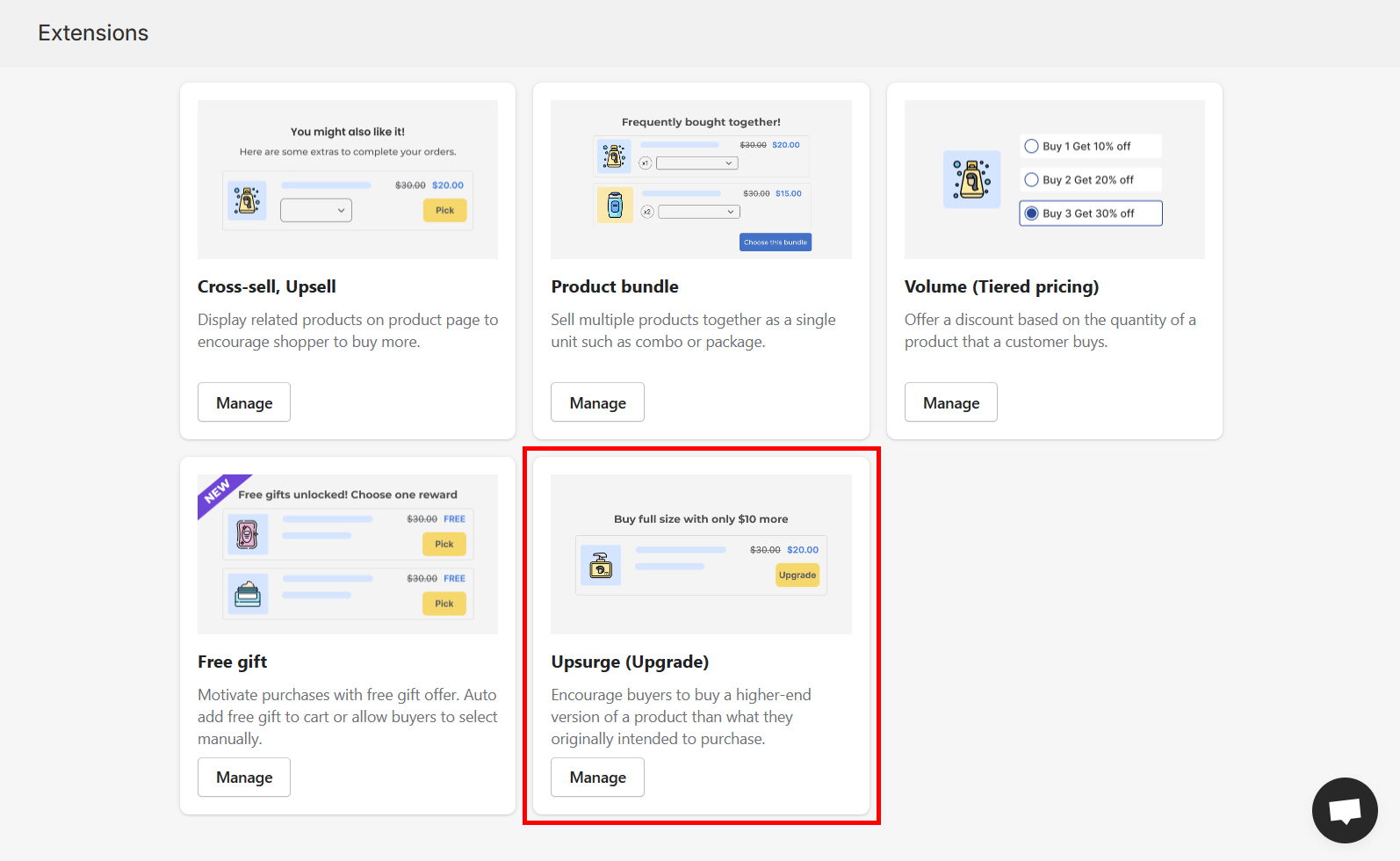
Click on "Create Offer" button in the app dashboard, then select "Upsurge (Upgrade)" offer type
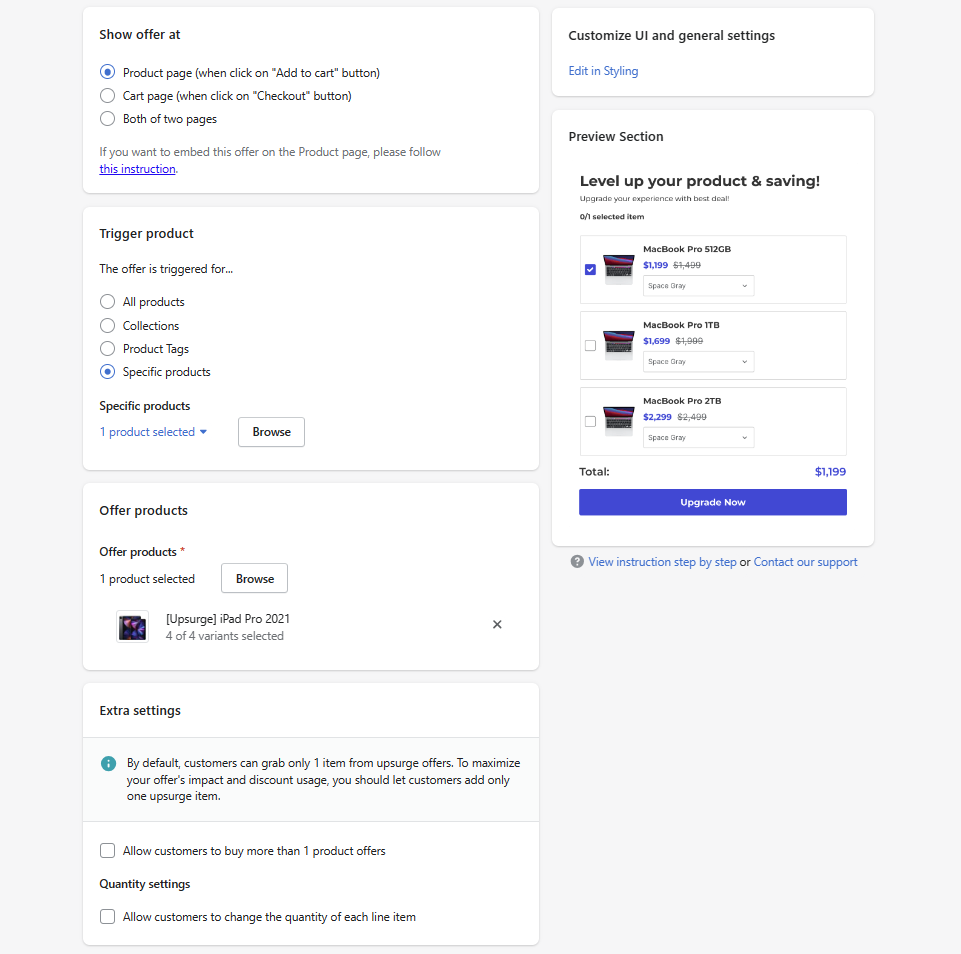
Step 3: Set up offer details
Configure your offer details. Offer settings are very straightforward and easy to follow the instruction in-app.
Nevertheless, if you encounter any difficulties, feel free to reach out to our support team in the live chat.
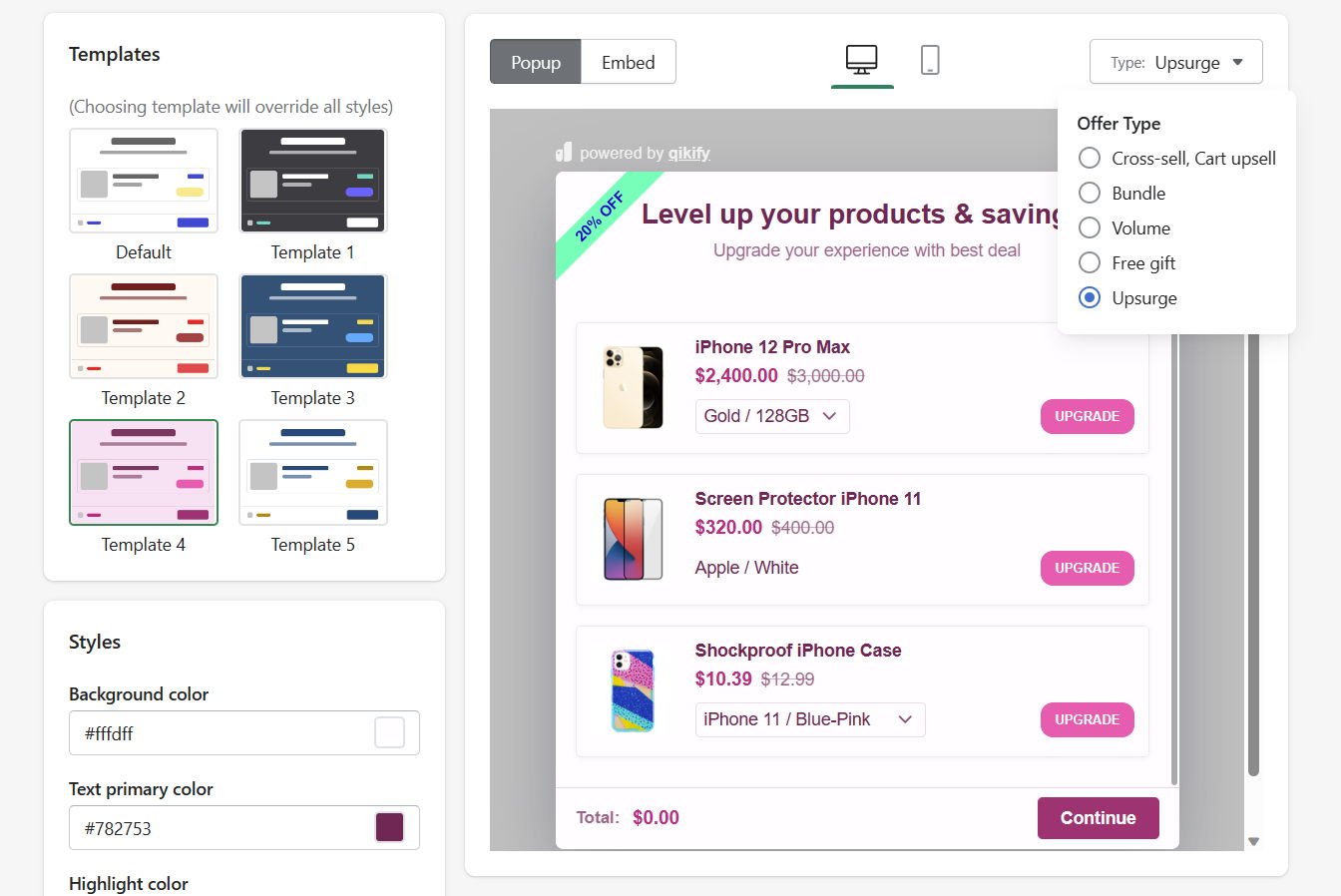
Step 4: Style your volume discount offer pop-up/embed
You can then go to "Styling" section to customize your volume discount popup/embed style.
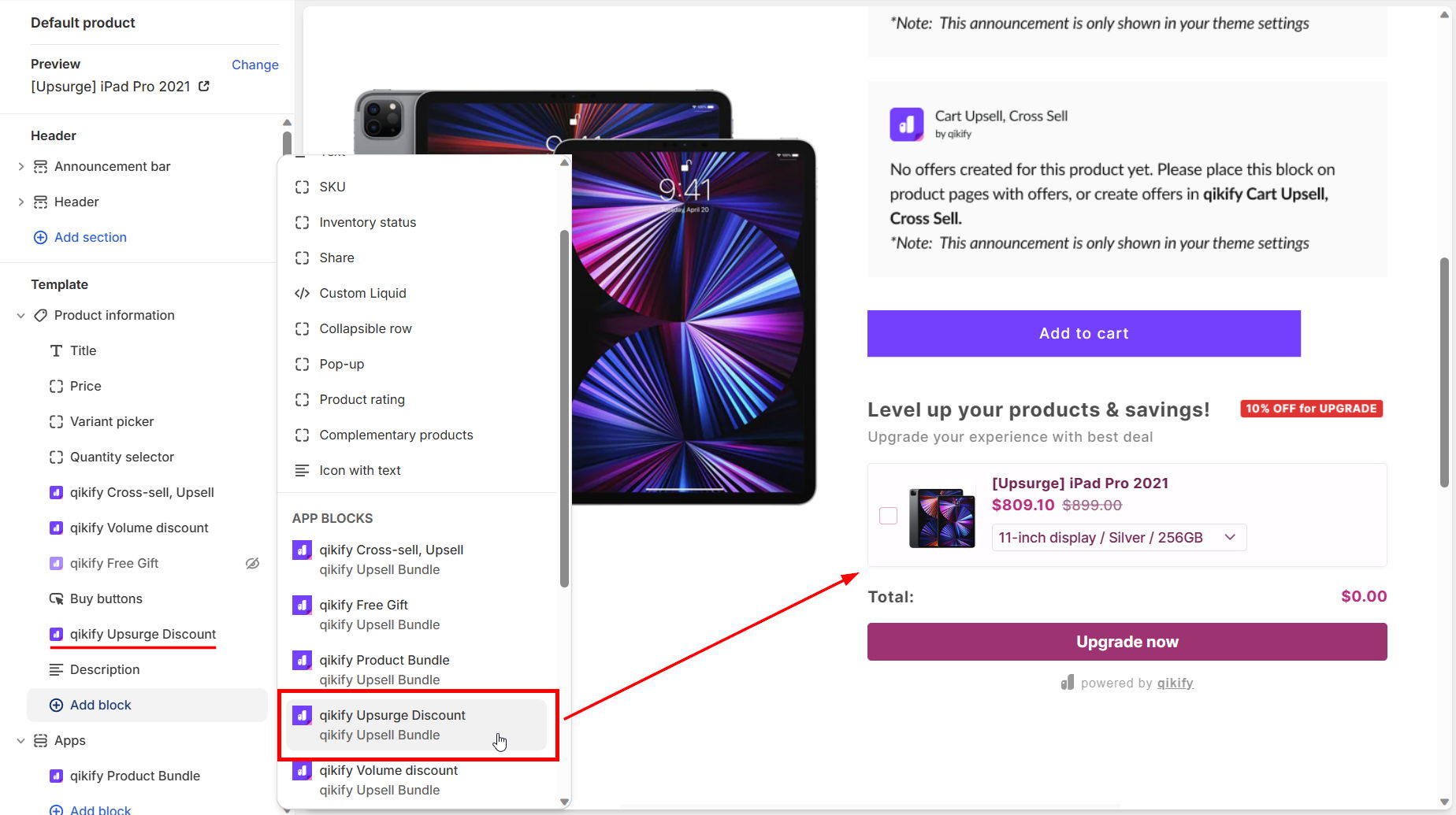
Step 5: Add app embed to your product page (optional)
If you use app embed layout, this is a crucial step to display your offer in product page.
- From Shopify admin, open Theme editor > Go to Product page editor
- Then, add a new block in the Product information section
- Choose "qikify Upsurge"
Demo video


