
Use Cases

Create gift cards in Shopify checkout

create gift cards in checkout
Promotion Image

Summarize this post by:

or

Boost your holiday sales revenue during checkout process with #1 consumed gift - Gift cards

Qikify Checkout Plus

Product

Qikify Checkout Plus

View on Shopify →

Goals

Provide gift cards in checkout
Increase average order value during holiday season

When and which brand should apply this case?

For brands that seeking to add gift cards in the checkout phase

Features used

  • Product Offers — recommend specific products, including gift cards, directly on the checkout page.
  • Manual Product Selection — manually pick "Gift card" as the recommended product, with no conditions needed to always show it.
  • Variant Selector — let customers choose the gift card variant right from the offer.
  • Checkout App Block — add the Product Offers block to the checkout editor and drag and drop it into place.

Instructions

Set up a Product Offers of gift card as instructed below.

(For Custom Fields instruction, check out our Demo video)

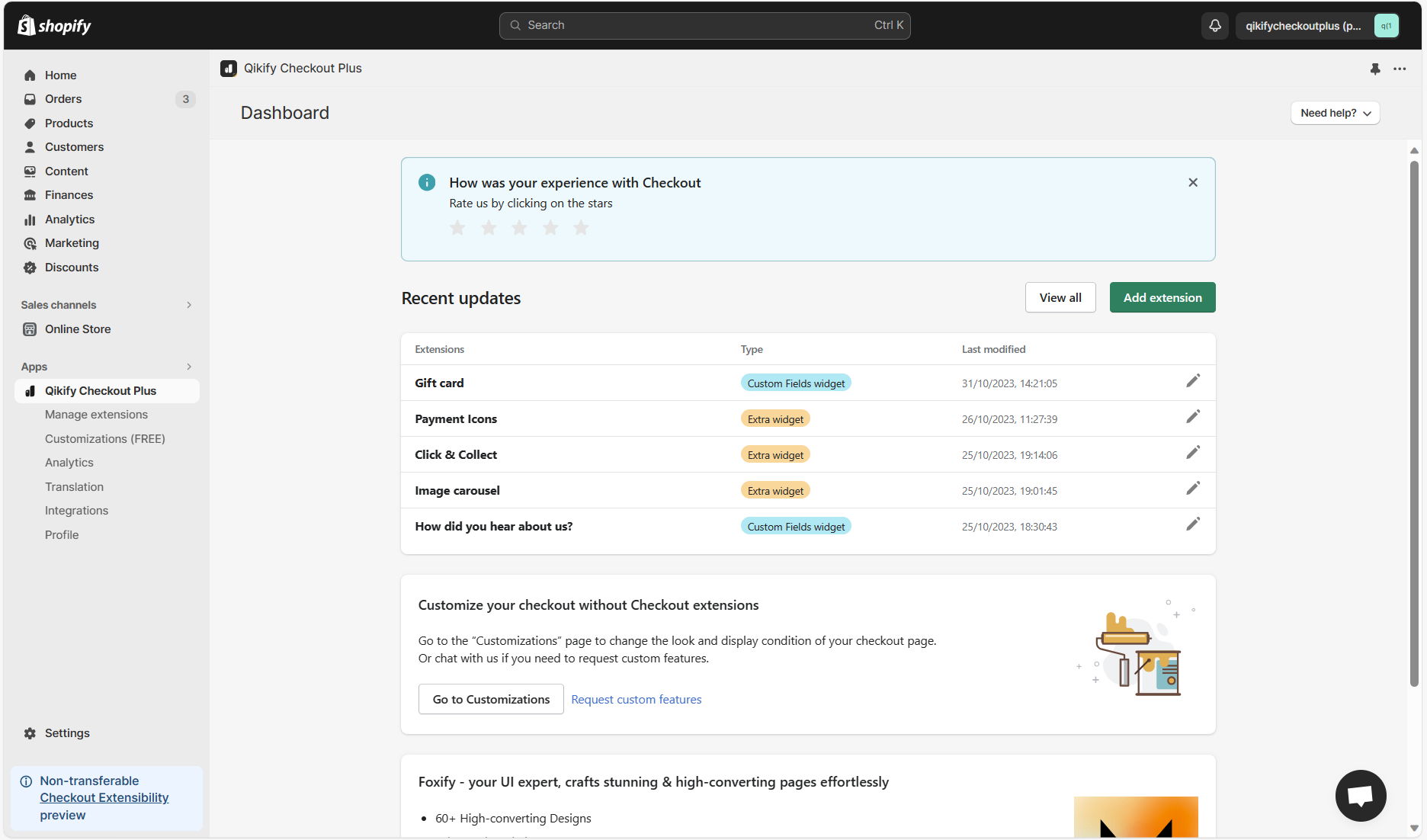
Step 1: Log in app dashboard

Log in to your store admin and open "Qikify Checkout Plus" app. If you haven't installed our app, you can free to do it from here.

qikify checkout customizer app dashboard - shopify checkout customization app

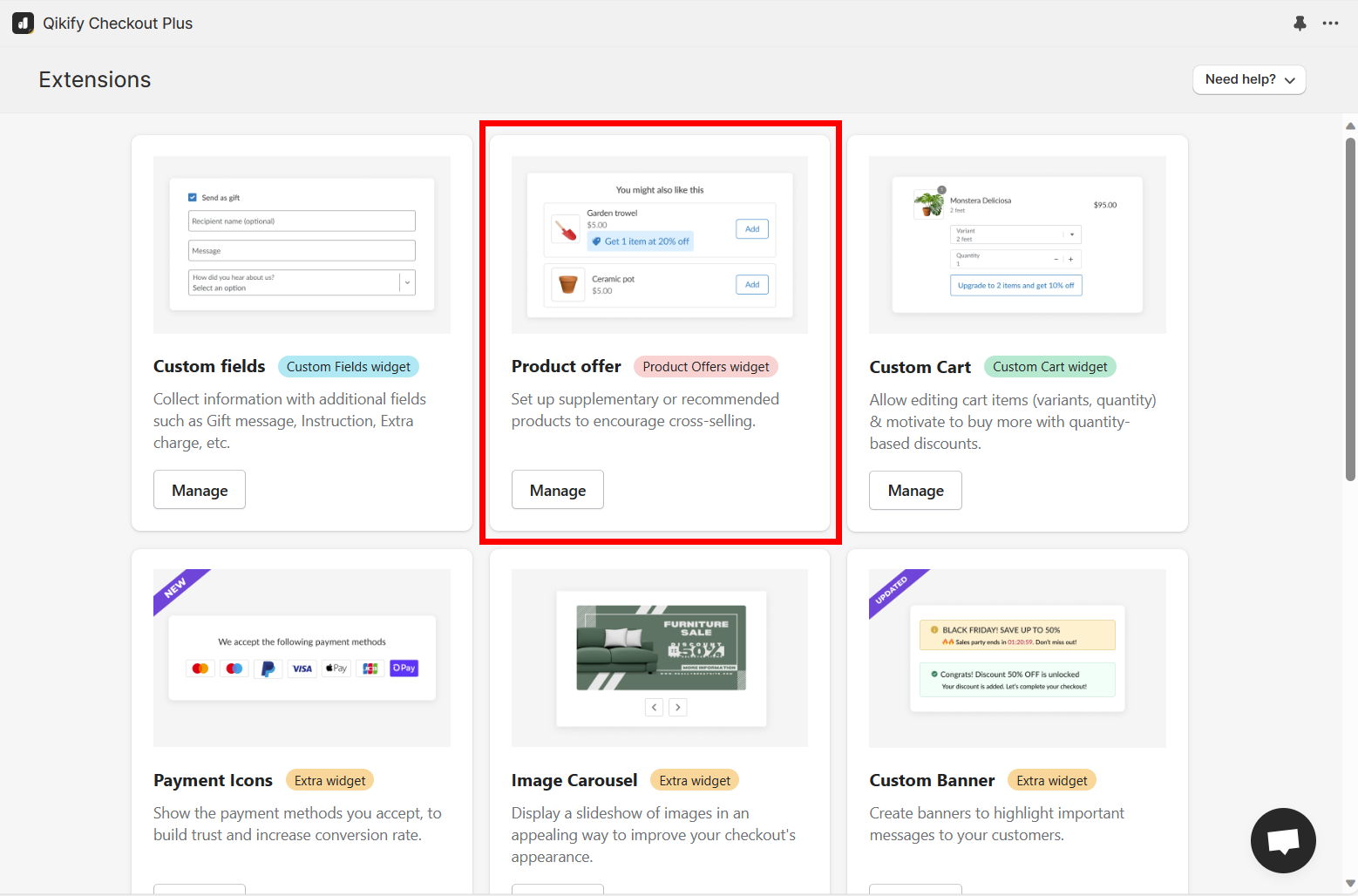
Step 2: Add extension "Product Offers"

Click on "Add extension" button in the app dashboard, then select "Product Offers" extension

add checkout extension testimonial for setup - shopify checkout customization app

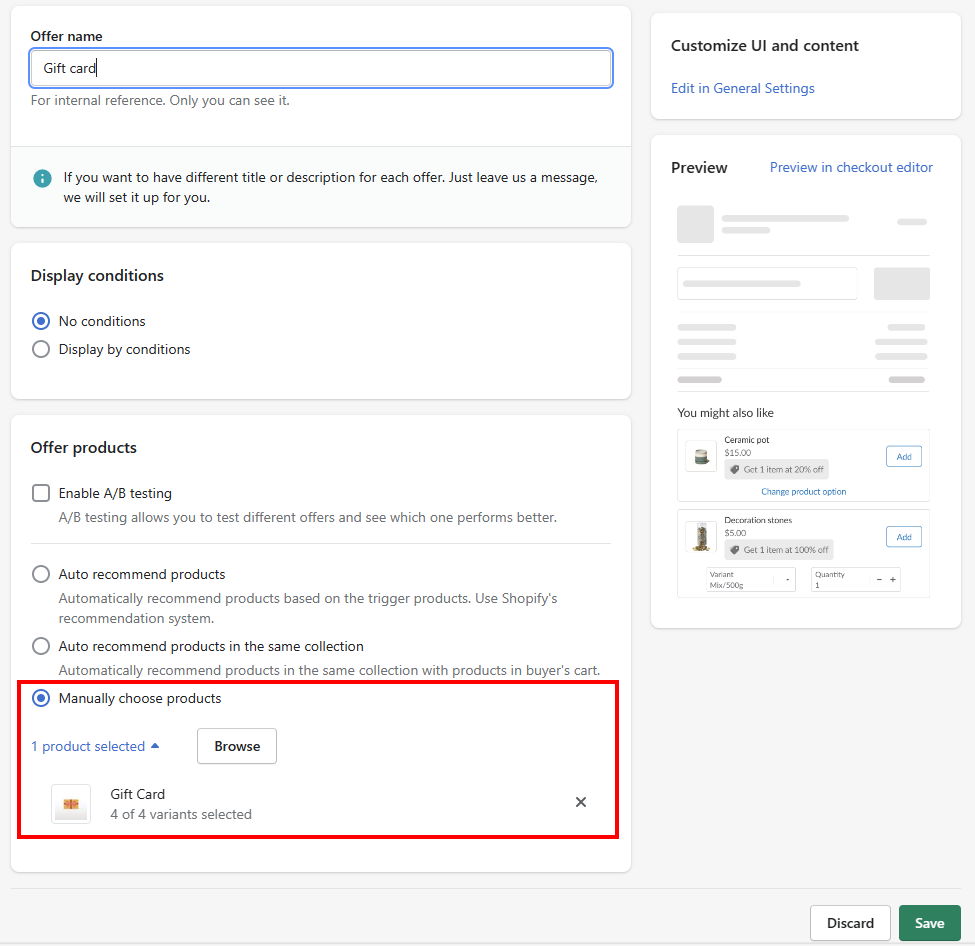
Step 3: Add "Gift card" as recommended product

  • Don't choose conditions for this offer if you want to always show the gift card option in checkout
  • Manually choose products > Then select "Gift card"
Add gift card as recommended product

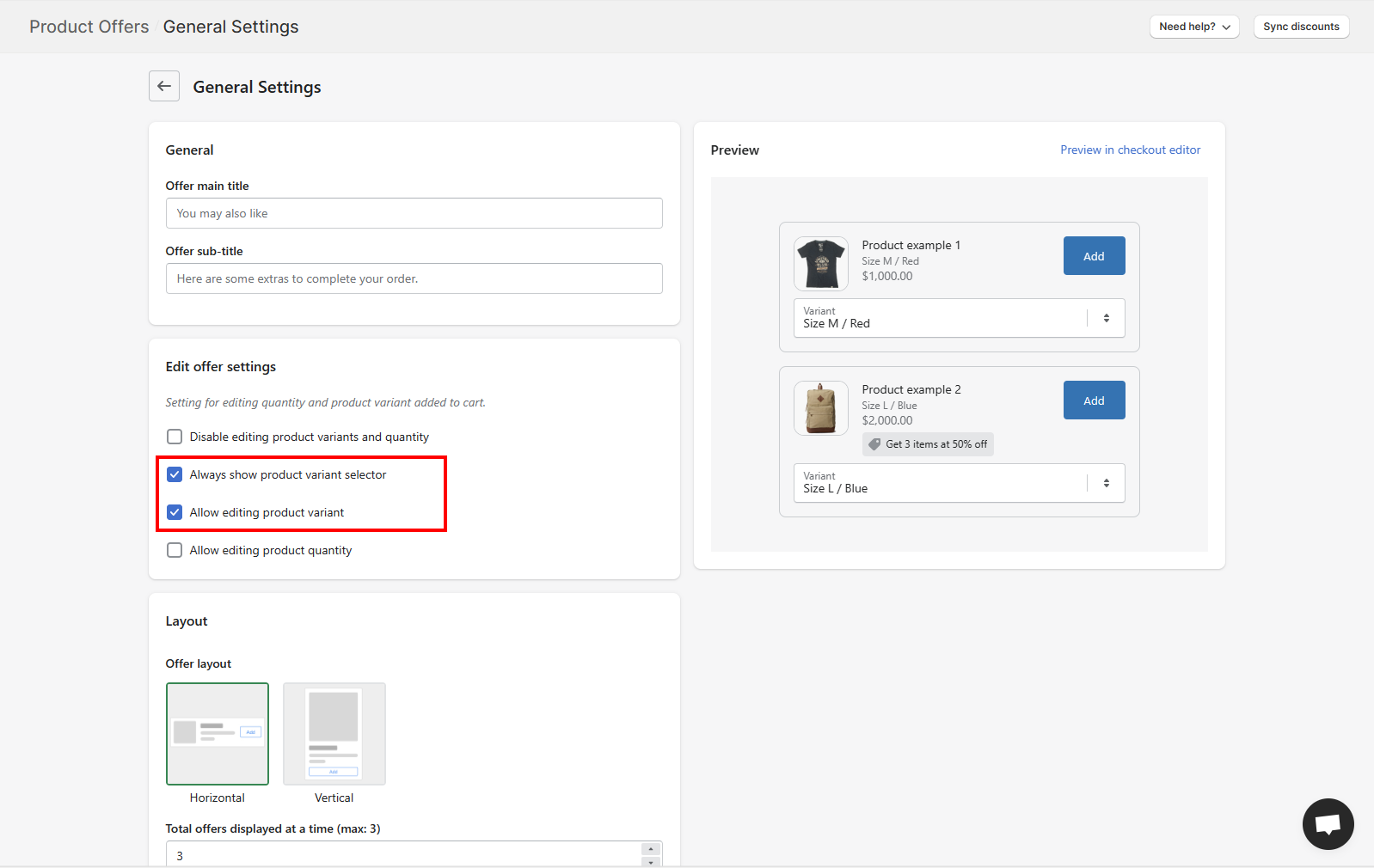
Step 4: Adjust extension layout - Allow customers to choose gift card variant

Go to General Settings of Product Offers extension to enable the variant selector

add reviews for testimonials extension in checkout page - shopify checkout customization app

Step 5: Add extension to checkout editor

  • Open Shopify Settings > Checkout. Then click on "Customize" to open checkout editor
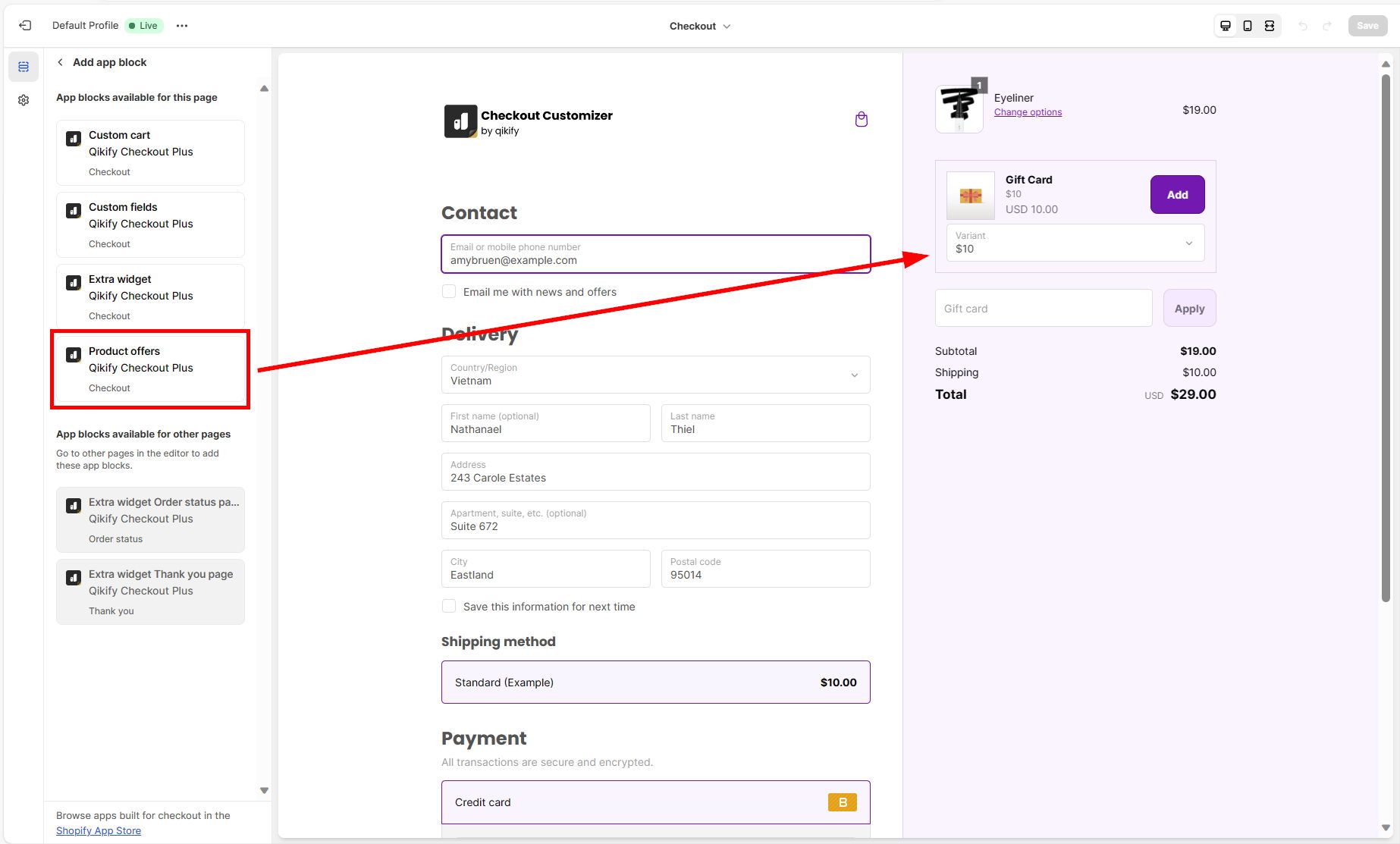
  • Click on "Add app block" on the left panel and choose "Product Offers" > Drag and drop the form in the editor to adjust its placement in checkout page
add reviews for testimonials extension in checkout page - shopify checkout customization app

Demo video

about the author

Maya Mai

Maya Mai

Social Media Manager

Digital Marketing Specialist at Qikify Hello! I am Maya Mai – digital marketer, storyteller, and creative thinker. My passion? Crafting impactful strategies and compelling narratives that help eCommerce brands thrive. When I’m not immersed in marketing projects, you’ll find me exploring new skills—whether it’s learning design techniques, honing photography, or diving into research. For me, every day is a chance to create and grow. Feel free to reach out! I’m always excited to chat about marketing, share insights, or explore exciting new collaborations.